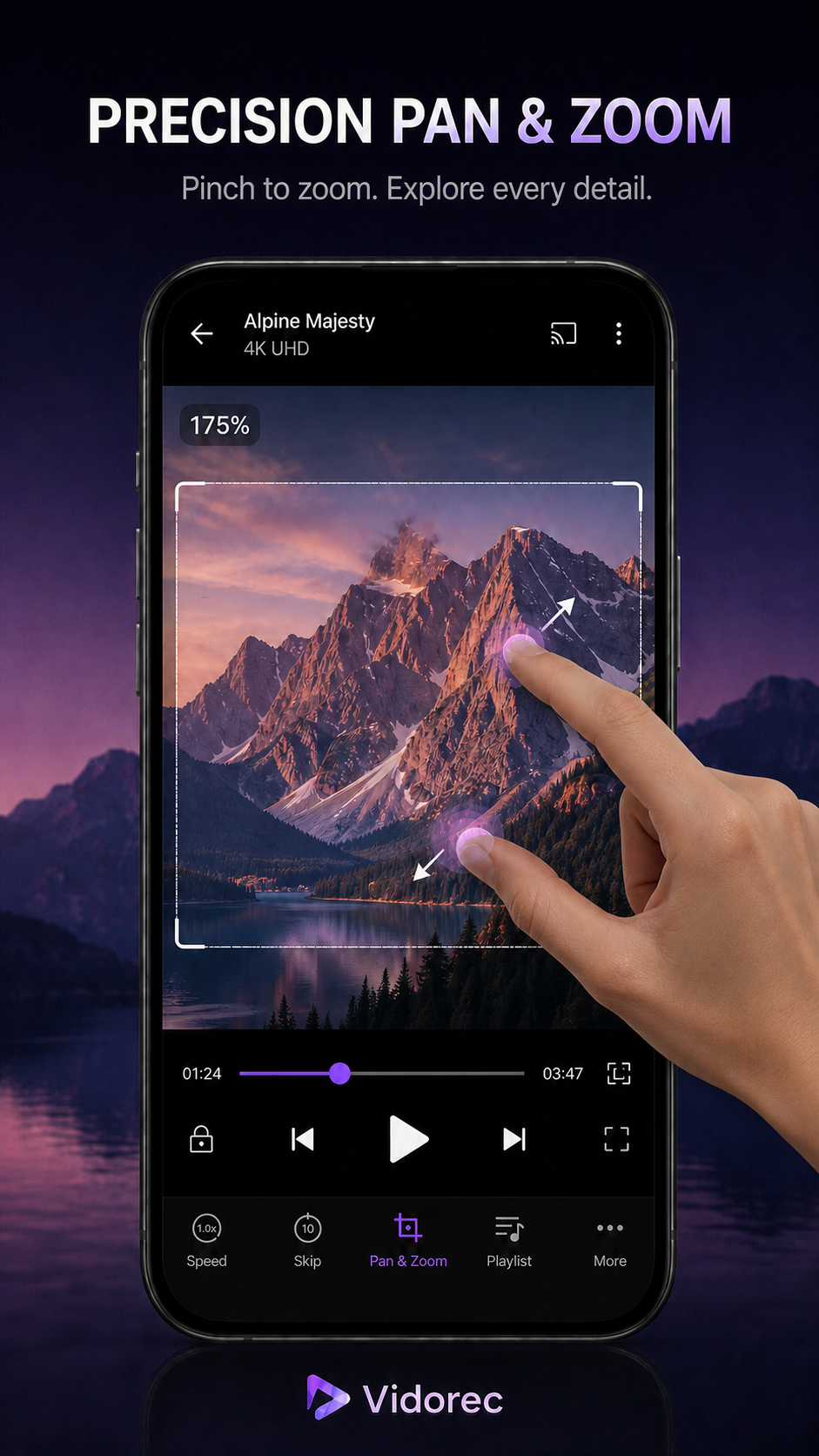
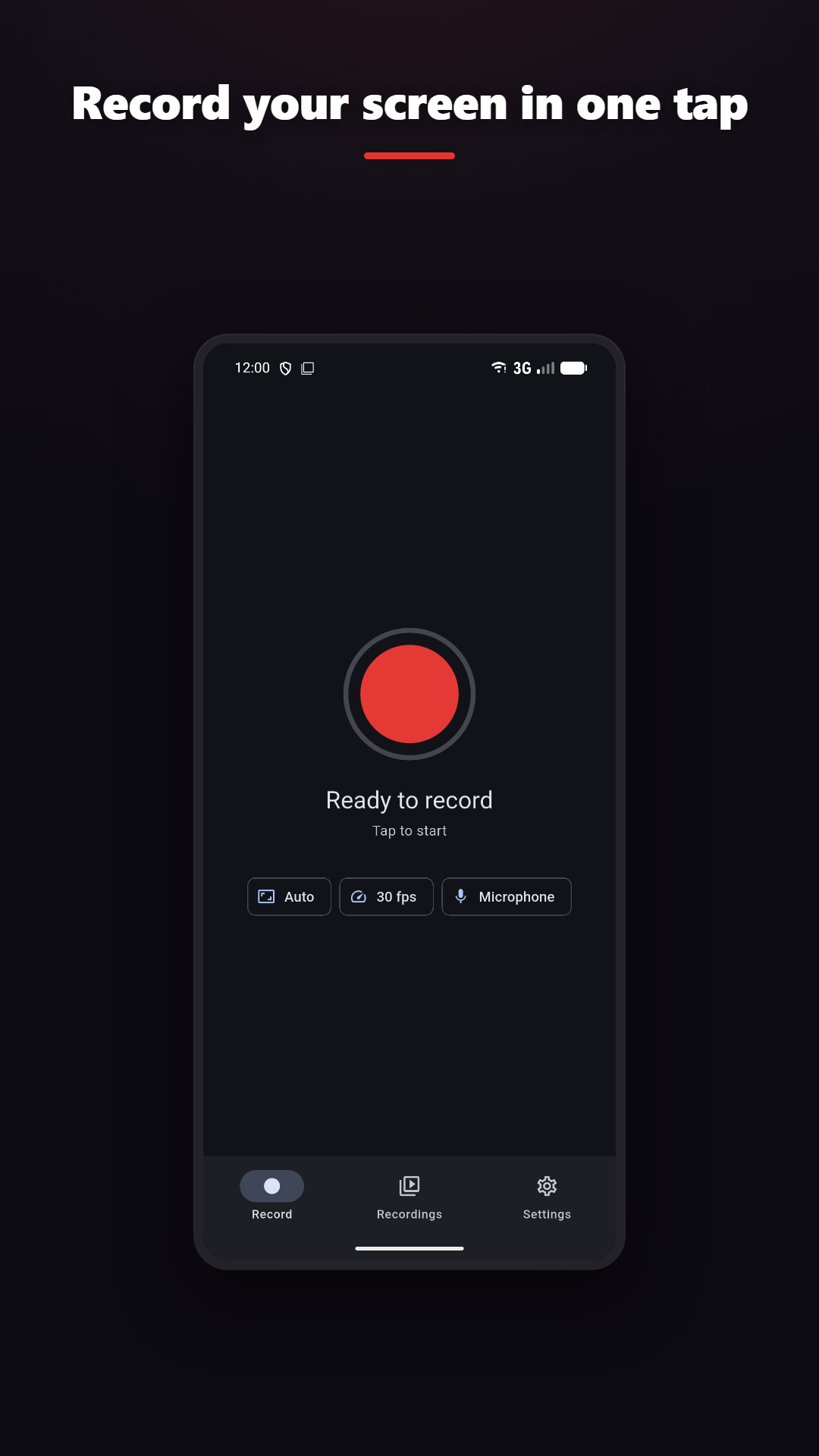
Record a lesson, game or step-by-step app guide. Open a video stored on your phone and choose how you watch it. Vidorec makes focused mobile tools for screen recording and local video playback, with clear controls and no unnecessary complexity.
Explore the apps Your recordings and local videos stay under your control
1080p · 60 FPS
Pinch zoom, pan and playback gestures
THE VIDOREC FAMILY
Purpose-built. Clear from the start.
One app records and edits your screen. The other plays the videos you choose. Each app has a clear purpose, and its features and compatibility limits are explained from the start.
SCREEN RECORDER
Screen Recorder Vidorec
Start a screen recording, choose microphone, eligible device sound or both, then trim and finish the result on your phone.
Resolution, frame rate and bitrate controls
Microphone, eligible device audio or a supported mix
Media tools should be fast, clear and easy to control.
01
No account for the basics
Screen recording, editing and local video playback do not require a Vidorec account.
02
Media stays local
Your screen recordings and the videos you open remain on your device. Vidorec does not upload those files.
03
Compatibility explained honestly
Audio capture, codecs, HDR, resolution and performance depend on the operating system, source app and device hardware.
GUIDES
A clear answer first. Useful details next.
Original, practical explanations for screen recording and local video playback, grounded in current platform rules and real product behavior.
RECORD
How to record your screen with audio
To record your screen with audio, choose the correct audio source before capture: microphone for narration, device audio for app or game sound, or a supported mix of both. On Android, internal audio capture requires Android 10 or newer and the recorded app must allow capture. Always make a short test first.
For smooth gameplay or tutorial recording, begin with automatic quality, make a short performance test and prioritize stable frames over the largest number on the settings screen. Use device audio for eligible game sound, add a microphone only when narration is needed, and leave storage and thermal headroom for the encoder.
A good offline video player opens only the file you choose and keeps it on your device. It explains unsupported formats clearly, resumes where you stopped and keeps essential controls accessible. Look for subtitles, audio-track selection, Picture-in-Picture, background playback and precise zoom. Actual codec, HDR and 4K support depends on the device decoder.
MP4, MKV and WebM are containers that hold video, audio and sometimes subtitles. H.264, HEVC, VP9 and AV1 are codecs that compress the video inside. Playback succeeds only when the player and device support the container, codec, profile, resolution and audio combination. A familiar file extension alone cannot guarantee compatibility.
Why a screen recording has no sound and how to fix it
A silent screen recording usually has one of four causes: no audio source was selected, microphone permission was unavailable, Android's device-audio requirements were not met, or the source app blocked capture. Test a short recording with a known sound source, check the saved file in another player and change one setting at a time.
How to choose a screen recorder without a forced watermark
Choose a no-watermark screen recorder by checking the exported file, not just the download page. Make a short recording and verify that the free result has no forced logo, the resolution and frame rate are usable, sound works for your source, and the app clearly explains accounts, ads, storage and paid limits. Vidorec does not add a forced Vidorec watermark to normal recordings.